Triathlon: fix your transitions, or swap in a leg from another device
Your watch put the transition in the wrong place, or recorded the bike leg badly while your bike computer got it right. Here's how to fix both in one file, step by step.
The situation
You raced with your watch in multisport mode and a bike computer on the handlebars. Now the watch file has two problems. The transition presses landed a little late or early, so your swim includes the run up the beach. And the bike leg is the weak part of the watch's recording: the wrist sensor lost your heart rate for long stretches, and the watch never saw the power meter the bike computer was paired to.
The Split fixes both in the same file. You move the transitions to where they really were, and you swap the bike computer's recording into the bike leg. The result is still your watch's file, with its swim, run and device identity intact.
What you need
Your watch's multisport file as the primary file, and the bike computer's recording of the bike leg as the secondary file. Either can be FIT, TCX or GPX. The Move a transition card only unlocks when the primary file has more than one leg.
For the swap, The Split checks two things. The secondary file must be a single-sport recording, with exactly one session. And at least 80% of the secondary file's own duration must fall inside one leg of the watch file. The leg's sport label doesn't matter, only the time.
The 80% rule is measured against the bike computer's recording, not the leg. A bike file that starts a little after the watch's T1 press is fine. But if you forgot to stop the bike computer and it kept recording through the run, most of its recording falls outside the bike leg. The Split then says the file doesn't match any leg and shows the best share it found. The fix is to trim the bike computer's file first: load it on its own, cut it back to the bike leg with Crop & split, export it, then start again with the trimmed file as the secondary file.

A secondary file with more than one session, for example a second multisport file, is not offered for a swap at all. In that case the screen shows no toggle and no message about it.
Step by step
Load your watch's multisport file into the primary slot. Once it's loaded, the secondary slot suggests dropping your bike computer's file there. Do that, then choose Move a transition.
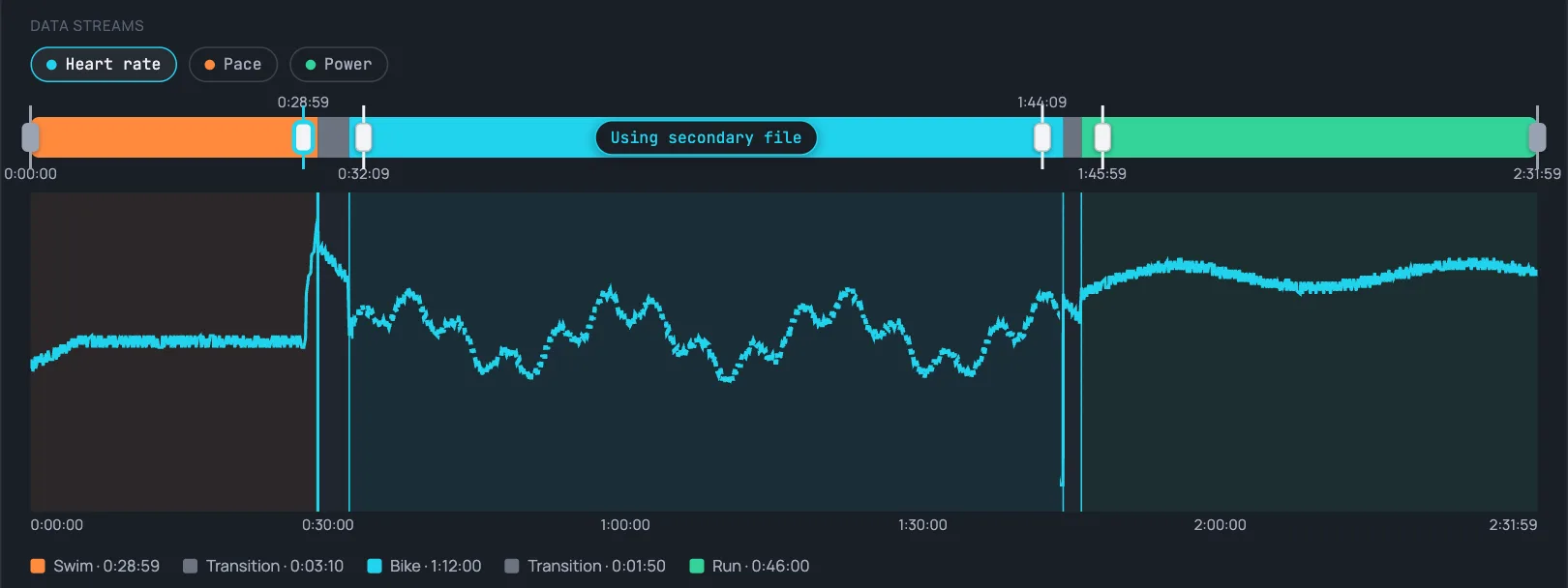
Fix the transitions first. Each transition is a handle on the timeline bar above the chart. Drag it to the right moment, or select it and use the minus and plus buttons or type a time into the box. A move is saved as soon as you release the handle or enter the time. If you have the official chip times, Enter official times sets every boundary at once. If the official start or finish differs from your recording's, it also offers to trim the recording to the official window.
If one of your laps runs across a transition, The Split cuts that lap in two at the new transition. It can only do that if the new transition falls inside that lap. If it doesn't, the move is refused, the handle snaps back, and a message under the chart explains why.
Now look above the chart. When the bike computer's file matches a leg, a banner says so, and a Use secondary file switch sits on that leg in the timeline bar. The check runs again after every transition you move, so the switch follows the leg if its edges change. Turning the switch on is only a preview: the chart shows the bike computer's data over that leg, and nothing is changed yet.

With the switch on, Apply & export makes the swap and downloads the file. It includes every transition you moved. With the switch off, the same button downloads the file with your moved transitions only. The download keeps the primary file's name and format.
What happens to the rest of your data
The swap only touches the stretch where the bike computer was recording inside the matched leg. There, heart rate, power, cadence, speed, GPS position, altitude and temperature come from the bike computer, field by field. Wherever the bike computer has no value for a field, the watch's own value stays. Distance keeps counting on from the watch's figure at the start of the stretch, so it doesn't jump. The swim, the run, the transitions and any part of the bike leg the bike computer didn't cover keep the watch's data.
The file stays your watch's file. Its device identity and lap structure are kept, and the bike computer's own laps are not imported. The leg's averages, such as heart rate and power, are recalculated from the new data. The leg's calorie figure stays the one your watch recorded.
Moving a transition makes one leg shorter and the one next to it longer. The shorter leg keeps a share of its calorie figure wherever The Split can work one out from the file. The longer leg loses its calorie figure, because the watch's number never covered the time it gained, and The Split won't guess one. This also applies to Enter official times, which moves every transition at once.
Questions
- Does the bike computer's file have to say it's a bike ride?
- No. The match is made on time alone. The Split looks for the leg that holds at least 80% of the bike computer's recording, whatever sport either file names.
- Can I use a GPX or TCX file from the bike computer?
- Yes. FIT, TCX and GPX are all accepted as the secondary file. Only the fields the file actually carries are swapped in; the watch keeps its own values for the rest.
- Why doesn't the Use secondary file switch appear?
- Either the secondary file has more than one session, which the swap doesn't accept, or less than 80% of its recording falls inside any one leg. In the second case a warning says so and shows the best share it found. Trimming the bike computer's file to the bike leg with Crop & split usually fixes that.
- Will it change my swim or my run?
- No. Only the matched leg is changed, and only where the bike computer was recording. The other legs keep your watch's data.
- Will Garmin Connect accept the result?
- In our test, yes. We uploaded a demo triathlon with a moved transition and a swapped-in bike leg. Garmin Connect imported it as one multisport activity with all five legs, including the moved transition and the bike leg's new average power. That was one upload of a demo file, not a guarantee for every device and file.
- Why did one of my transitions lose its calories?
- Moving a boundary makes one leg longer. The watch's calorie figure for that leg never covered the extra time, so The Split removes it rather than keep a number that no longer fits. The shorter leg keeps a share of its figure where the file allows one to be worked out.