How to fix a folder of FIT files at once, automatically
Have an AI agent or a script repair, merge, crop and relabel a pile of FIT files, with the exact API calls.
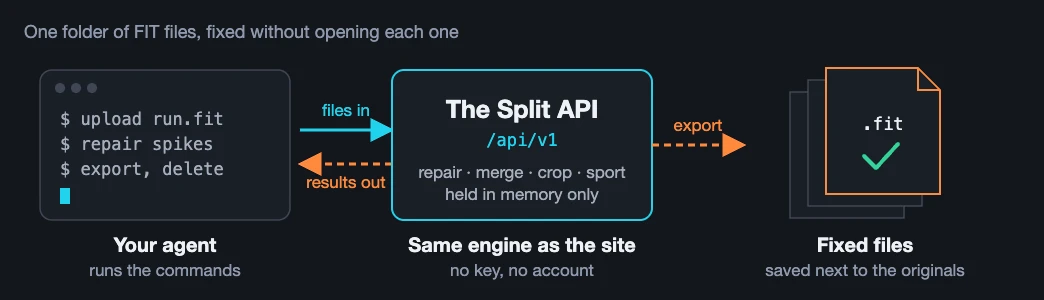
What this guide is for
Fixing one file on the site takes a few clicks. Fixing thirty is an evening of uploading, clicking and downloading. If you use an AI assistant that can run shell commands or write a short script, you can hand it the job instead: The Split has a public API that runs the same tools as the site, with no key and no account.
Below are three common jobs. Each has a prompt you can paste into your assistant and the calls the assistant ends up making, so you can check its work or run them yourself. The calls need curl and jq. For a first look at the API itself, the API quickstart walks through one upload, crop, export and delete in curl, Python and TypeScript.
Job 1: repair heart-rate spikes in a folder of files
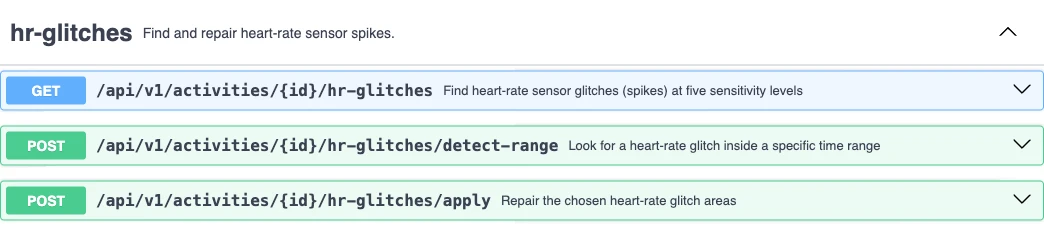
A heart-rate spike is a stretch where the reading jumps to a wrong but believable level, holds it, then snaps back. The API finds stretches that look like spikes, gives each a confidence label, and marks the ones it would repair by default as preselected. The prompt below repairs only those and leaves the rest for you to decide.
Use The Split's API to fix heart-rate spikes in every .fit file in this folder.
Read https://thesplit.fit/llms.txt and https://thesplit.fit/api/v1/openapi.json first.
Work on one file at a time:
1. Upload it and ask for its heart-rate glitches.
2. At the default sensitivity, repair only the candidates marked preselected.
   If there are none, skip the file and list the other candidates at that sensitivity for me.
3. Export the result as <name>-repaired.fit next to the original. Never overwrite the original.
4. Delete every activity you created for that file.
If you get a 429, wait the number of seconds in Retry-After, then retry.
At the end, list the files you changed and anything reported in cleared or clearedHrDerived.
Behind that prompt, one file goes through these calls. The repair replaces each chosen stretch with an estimate and saves the result as a new file. When nothing is preselected the file is skipped, which is a normal answer, not an error. The -f on the export line makes curl stop with an error instead of saving an error message under a .fit name.
BASE=https://thesplit.fit/api/v1

# Upload, then ask for suspected spikes at five sensitivity levels
ID=$(curl -s -F "file=@run.fit" $BASE/activities | jq -r .activityId)
curl -s $BASE/activities/$ID/hr-glitches > glitches.json

# The candidates preselected at the default sensitivity, as repair areas
AREAS=$(jq -c '.defaultSensitivity as $s | [.positions[] | select(.sensitivity == $s)
  | .candidates[] | select(.preselected)
  | {startMs, endMs, origin: {kind: "automatic", sensitivity: $s}}]' glitches.json)

if [ "$AREAS" != "[]" ]; then
  NEW=$(curl -s -X POST -H "Content-Type: application/json" -d "{\"areas\":$AREAS}" \
    $BASE/activities/$ID/hr-glitches/apply | jq -r .activityId)
  curl -sf -o run-repaired.fit "$BASE/activities/$NEW/export?format=fit"
  curl -s -X DELETE $BASE/activities/$NEW
fi
curl -s -X DELETE $BASE/activities/$ID
Repaired values are estimates, not measurements. Figures built from the old heart rate, such as time in heart-rate zones, no longer hold, so they are removed from the repaired file; the API lists them under clearedHrDerived so your assistant can tell you. How to fix a heart rate spike on a Garmin watch explains the repair in more detail.
Not every sudden change in heart rate is a sensor error. If a jump came at rest, with dizziness or chest discomfort, or keeps happening, see a doctor. The Split edits data; it does not diagnose anything.
Job 2: merge a strap's heart rate into a watch file
If you wore a chest or arm strap that recorded on its own, its heart rate can replace the watch's wrist reading while everything else in the watch file stays as it was. Upload the watch's FIT file and the strap's export, for example a TCX file from Polar's app. The prompt stops at the preview so you can look at the numbers before anything is merged.
Use The Split's API to put my chest strap's heart rate into my watch file.
Read https://thesplit.fit/llms.txt and https://thesplit.fit/api/v1/openapi.json first.
The watch file is watch.fit and the strap file is strap.tcx.
1. Upload both and ask merge/detect what kind of merge they support.
   If the answer is not "hr", stop and tell me what it said.
2. Ask merge/auto-offset for the clock offset. If offsetMs is null, stop and ask me.
3. Run merge/preview in full mode with that offset and show me the heart-rate figures.
4. When I say go, run merge/apply with the same body and export watch-merged.fit.
5. Delete all three activities.
If you get a 429, wait the number of seconds in Retry-After, then retry.
These are the calls behind it. The detect call checks what kind of merge the pair supports: "hr" for a strap next to a watch, or "none" with a reason, for example when the two files do not overlap in time. The auto-offset call estimates how far apart the two clocks were. The preview call shows the result without keeping anything, and the apply call makes the merged activity. The listing stops before the preview if detect does not say "hr" or no offset could be estimated.
BASE=https://thesplit.fit/api/v1

WATCH=$(curl -s -F "file=@watch.fit" $BASE/activities | jq -r .activityId)
STRAP=$(curl -s -F "file=@strap.tcx" $BASE/activities | jq -r .activityId)

# What kind of merge is this? A strap next to a watch answers "hr"
KIND=$(curl -s "$BASE/activities/$WATCH/merge/detect?secondaryId=$STRAP" | jq -r .kind)

# Milliseconds to add to the strap's clock (null means no estimate)
OFFSET=null
if [ "$KIND" = "hr" ]; then
  OFFSET=$(curl -s "$BASE/activities/$WATCH/merge/auto-offset?secondaryId=$STRAP" | jq .offsetMs)
fi

if [ "$OFFSET" = "null" ]; then
  echo "Stopped: detect said $KIND, or the clock offset could not be estimated"
else
  # A dry run first, then the real merge with the same body
  BODY='{"secondaryId":"'$STRAP'","mode":"full","offsetMs":'$OFFSET'}'
  curl -s -X POST -H "Content-Type: application/json" -d "$BODY" \
    $BASE/activities/$WATCH/merge/preview | jq -c '{hrSubstitution, summaries}'
  MERGED=$(curl -s -X POST -H "Content-Type: application/json" -d "$BODY" \
    $BASE/activities/$WATCH/merge/apply | jq -r .activityId)
  curl -sf -o watch-merged.fit "$BASE/activities/$MERGED/export?format=fit"
  curl -s -X DELETE $BASE/activities/$MERGED
fi
for id in $WATCH $STRAP; do curl -s -X DELETE $BASE/activities/$id; done
Where the strap's reading is too low to be a real heart rate, the watch's own heart rate is kept. Before the strap starts or after it stops, its nearest reading is held, so crop both files to the time the strap was recording first. Lap and session heart-rate averages are recomputed from the merged readings. Merging Garmin FIT files with Polar heart-rate data covers the same merge on the site, where you can see the two lines and nudge the offset by eye.
Job 3: tidy a batch (crop, set the sport)
A batch of recordings often needs the same small fixes: the minutes standing at the start line cut off, and a run that the watch saved as a generic activity relabelled. This prompt crops five minutes from each end and, when the watch saved the file as generic or other, sets the sport.
Use The Split's API to tidy every .fit file in this folder.
Read https://thesplit.fit/llms.txt and https://thesplit.fit/api/v1/openapi.json first.
Work on one file at a time:
1. Upload it and read its summary (start time and duration).
2. Crop off the first 5 minutes and the last 5 minutes.
3. If its sport is generic or other, set the sport to running with no sub-sport.
4. Export the result as <name>-tidy.fit next to the original. Never overwrite the original.
5. Delete every activity you created for that file.
If a call is refused, skip that step, carry on, and tell me why at the end.
If you get a 429, wait the number of seconds in Retry-After, then retry.
Here are the calls for one file. Crop takes a start and end time in milliseconds since 1 January 1970 (the API's way of writing a time), worked out from the summary's start time and duration. The totals of what remains, such as distance, time and averages, are recalculated. Each step makes a new activity and leaves the one before it alone, so a step that goes wrong can simply be run again.
BASE=https://thesplit.fit/api/v1

ID=$(curl -s -F "file=@run.fit" $BASE/activities | jq -r .activityId)
SUMMARY=$(curl -s $BASE/activities/$ID)
START=$(echo "$SUMMARY" | jq -r '.startedAt | sub("[.][0-9]+"; "") | fromdate * 1000')
LENGTH=$(echo "$SUMMARY" | jq -r '.durationSec * 1000 | floor')
SPORT=$(echo "$SUMMARY" | jq -r .sport)

# Keep all but the first and last five minutes (times are epoch milliseconds)
CROPPED=$(curl -s -X POST -H "Content-Type: application/json" \
  -d '{"unit":"time","startMs":'$((START + 300000))',"endMs":'$((START + LENGTH - 300000))'}' \
  $BASE/activities/$ID/crop | jq -r .activityId)
RESULT=$CROPPED

# Relabel only a file saved as generic or other; a null subSport clears the sub-sport
if [ "$SPORT" = "generic" ] || [ "$SPORT" = "other" ]; then
  TIDY=$(curl -s -X POST -H "Content-Type: application/json" -d '{"sport":"running","subSport":null}' \
    $BASE/activities/$CROPPED/sport | jq -r .activityId)
  RESULT=$TIDY
fi

curl -sf -o run-tidy.fit "$BASE/activities/$RESULT/export?format=fit"
for id in $ID $CROPPED $TIDY; do curl -s -X DELETE $BASE/activities/$id; done
Two refusals are worth knowing. A file with more than one session, such as a triathlon, cannot be relabelled in one step; split it into its parts first. A pool swim keeps its sport, because its length and stroke data belong to it; only its sub-sport can change. Splitting and cropping activity files explains cropping and splitting on the site.
How to brief an agent
Start every prompt by pointing the assistant at thesplit.fit/llms.txt, a short plain-text description of the site and its API, and at the OpenAPI description, which lists every call with its fields, so the assistant does not have to guess them. You can browse the same list yourself in the interactive API docs.
Ask it to work on one file at a time and to delete every activity it created once that file is done, including the in-between results. That keeps it under the limit on how many activities you can hold at once (see Limits, below), and it frees memory for everyone else.
Tell it what to do when it is asked to wait. Calls sent too fast are answered 429 Too Many Requests, and a server that is full answers 503; both carry a Retry-After header, which is the number of seconds to wait. The right move is to wait that long and try again, not to retry at once. If a call answers 404 for an activity it uploaded earlier, the activity has expired or been discarded, and the file needs uploading again.
Ask it to save results next to the originals under a new name and never overwrite them, and to report anything the API lists under cleared: values the original file had and the result no longer carries, such as time in heart-rate zones after a repair. Open the first exported file in your training app, or upload it to the site, before you let it run through the rest of the folder.
Limits, in plain words
Your files are uploaded to The Split's server and held in its memory only; they are never written to disk. Each activity, upload or result, is discarded 30 minutes after it was last used, 2 hours after it was created at the latest, or straight away when your assistant deletes it.
One address can hold 12 activities at a time, and results count as well as uploads. Going past that quietly discards the result you used least recently, then the upload you used least recently, which is another reason to delete as you go. Each file can be up to 15 MB.
Calls are rate limited, and uploads more tightly than the rest: after a few quick uploads in a row the API asks your assistant to wait, and the 429 answer says for how long. A large folder therefore takes minutes rather than seconds. People sharing one connection, such as an office network, share the same budget.
When to use the site instead
For a single file, the site is quicker than writing a prompt. It is also the better choice whenever you want to see what you are doing: spotting a spike the search missed and selecting it on the chart, lining up a strap and a watch by eye, or dragging a crop to exactly where you stopped.
The Split is free to use. If it saves you an evening of clicking, the supporter wall is where you can help pay for its hosting.